
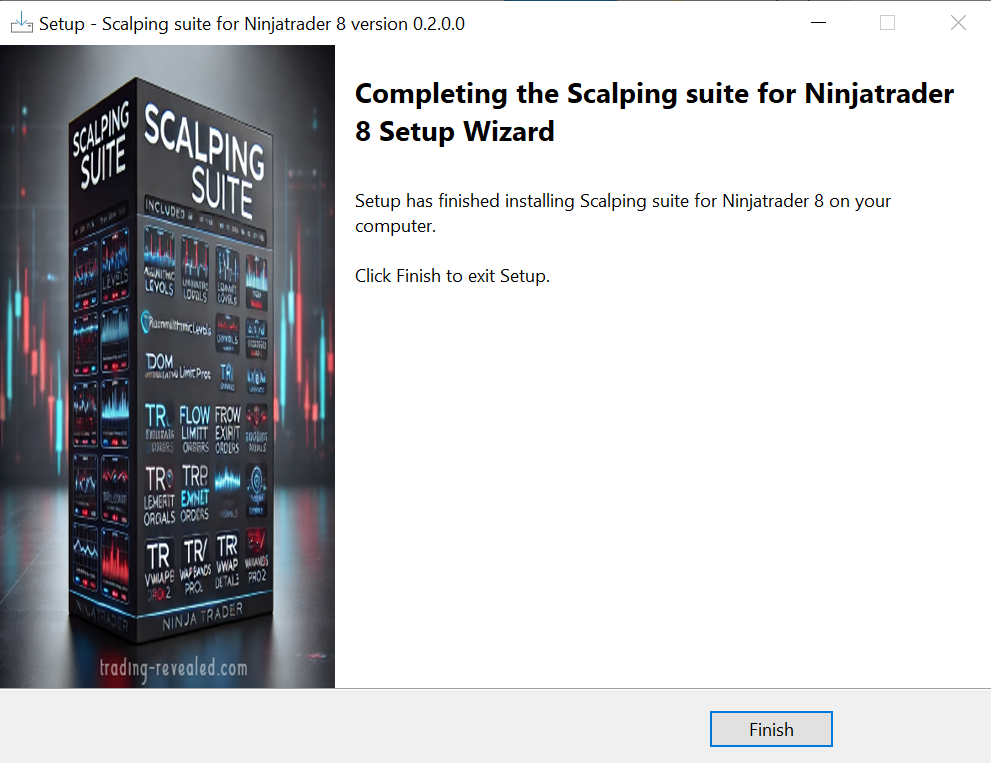
Starting from the version 0.2.0.0, the Scalping Suite indicators set for Ninjatrader 8 will be installed using an easy setup wizard. Follow these simple steps to install it.
Note on Indicator Updates : To update your indicator to a newer version, simply follow the same steps as the initial installation. The installer will automatically detect and uninstall your previous version before replacing it with the latest update.
Step 1: Close NinjaTrader 8
Important: The installer needs to update Ninjatrader core system files (DLLs).
- Make sure NinjaTrader 8 is completely closed before starting the installation.
- If the app is still running, the installer will pause and ask you to close it.
Step 2: Download and Extract
Because web browsers often flag .exe files, we have provided the installer inside a .zip archive.
Download the file from your confirmation email.
Right-click the ZIP file and select Extract All.
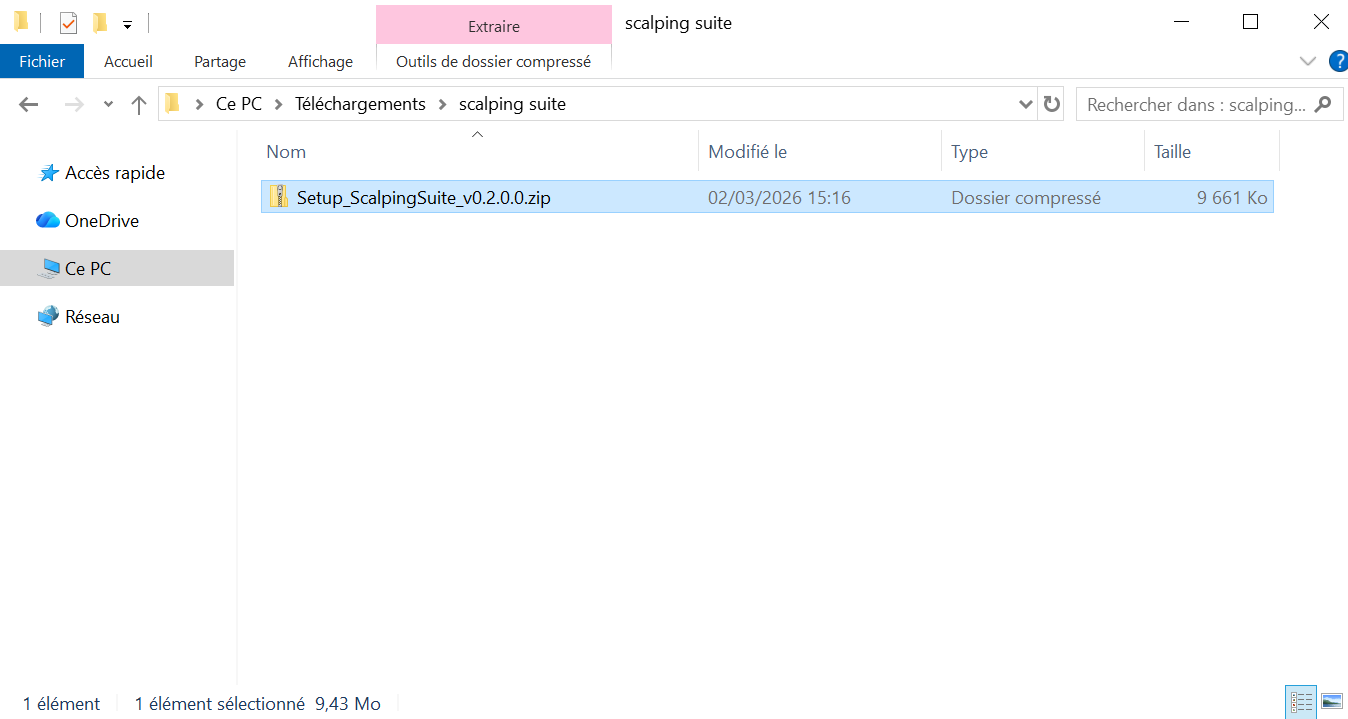
Step 3: Run the Installer
Double click on the extracted Setup_ScalpingSuite_vx.x.x.x.exe executable file
Or Double click on the downloaded ZIP file to open it and then double click on the executable file to launch the installation program directly:
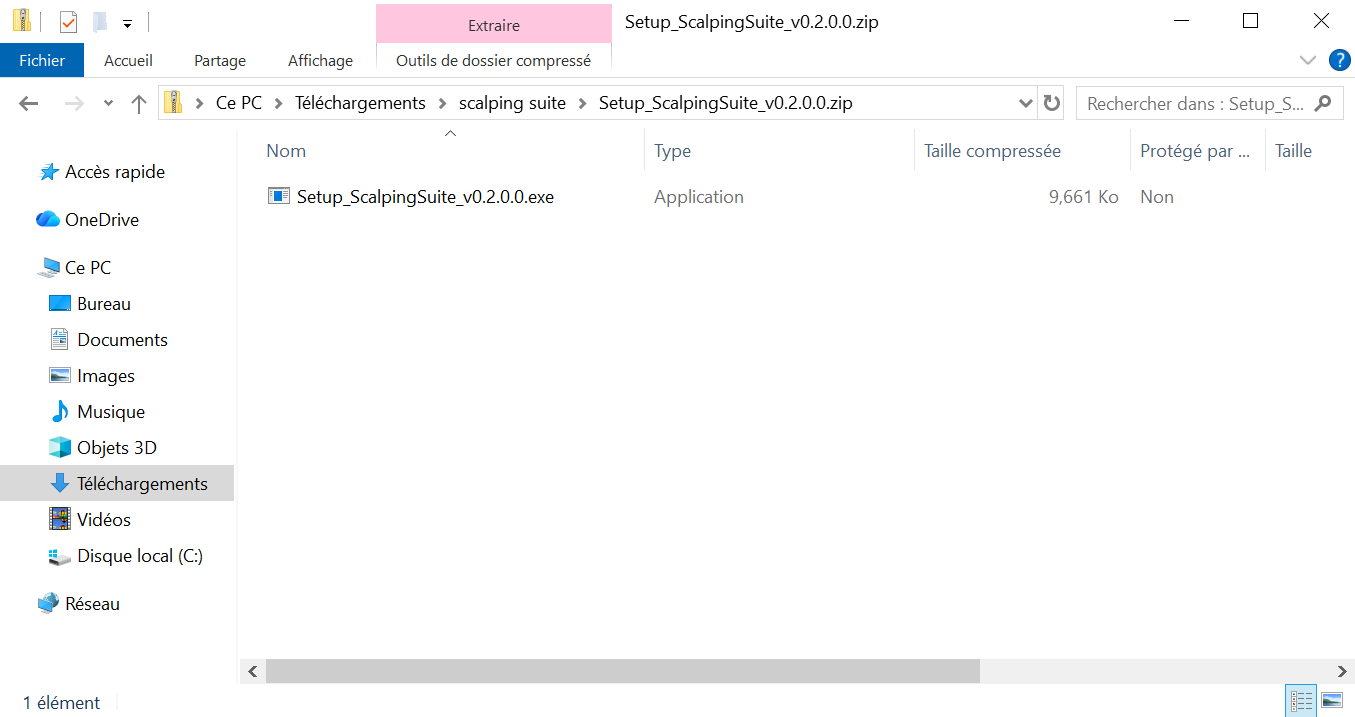
- Note on Windows SmartScreen: Since this is a specialized trading tool, Windows may display a blue “Windows protected your PC” alert.
- Click on “More info” and then select “Run anyway”.
Step 4: Accept the License Agreement
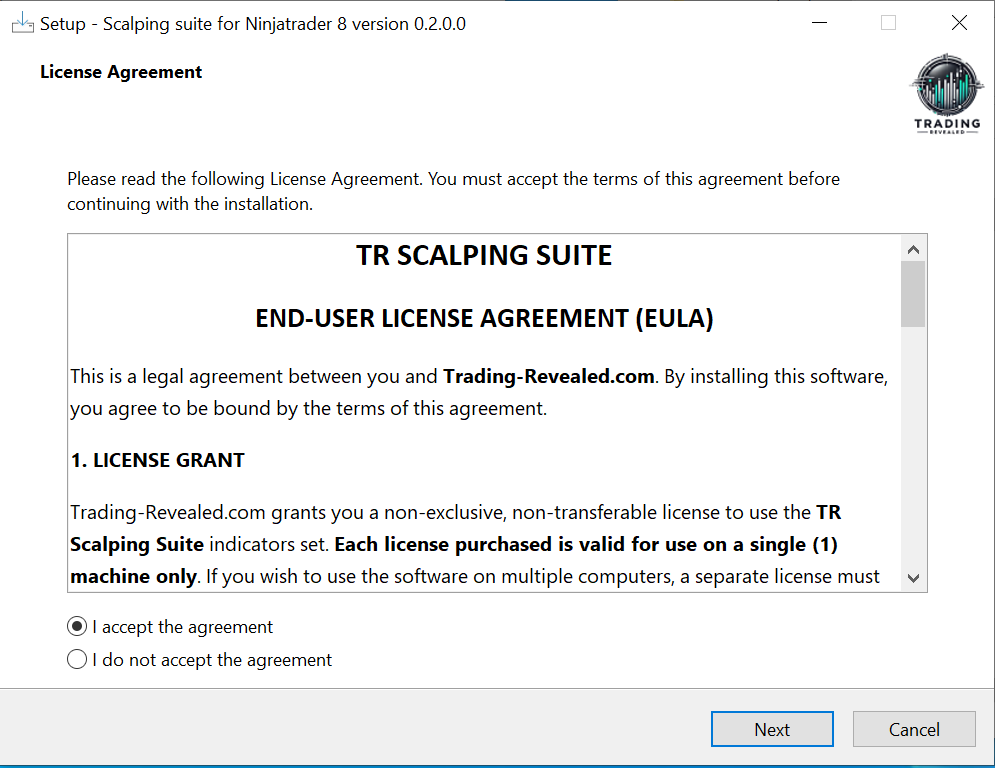
Read through our End-User License Agreement.
Single Machine Policy: Please remember that each license is valid for one (1) machine only.
Check “I accept the agreement” and click Next.
Step 5: Automated Installation
Click on the “Next” button:
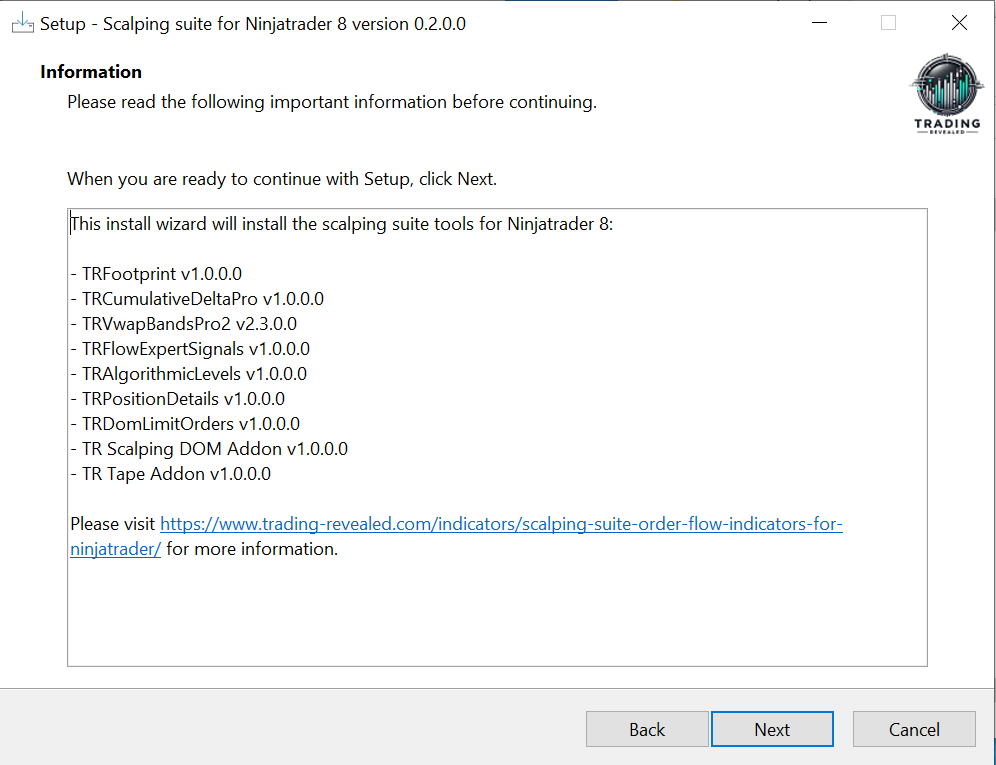
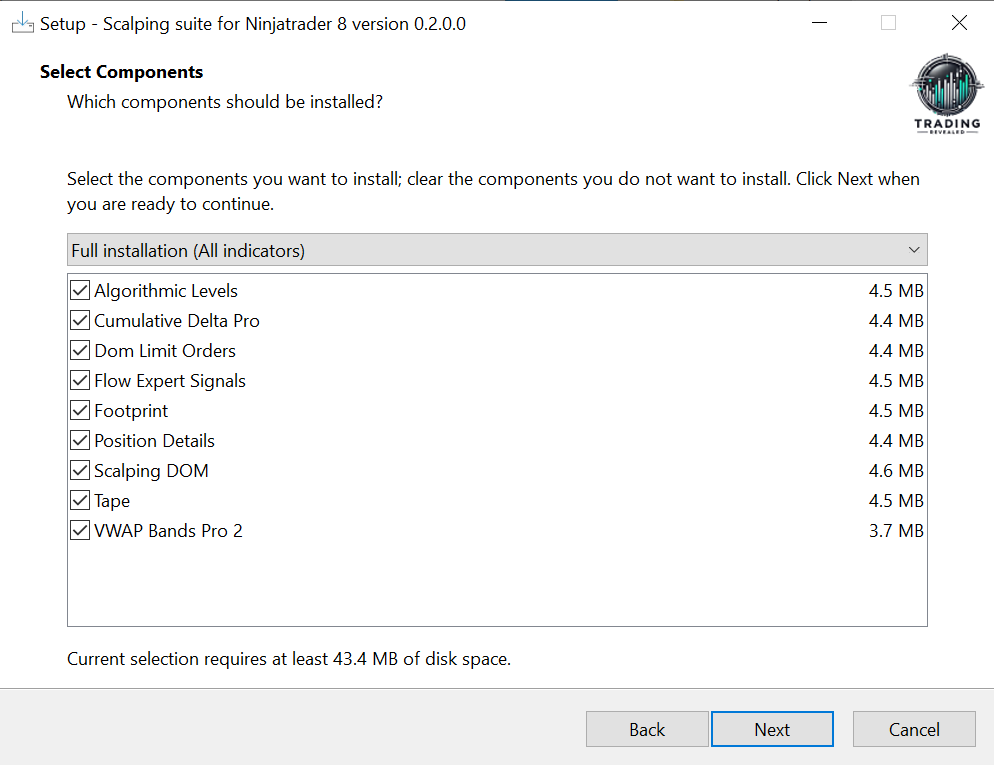
On the next screen, you can uncheck any indicators you don’t want to install (but we recommand to install everything).
Once you’re ready, click “Next” again:
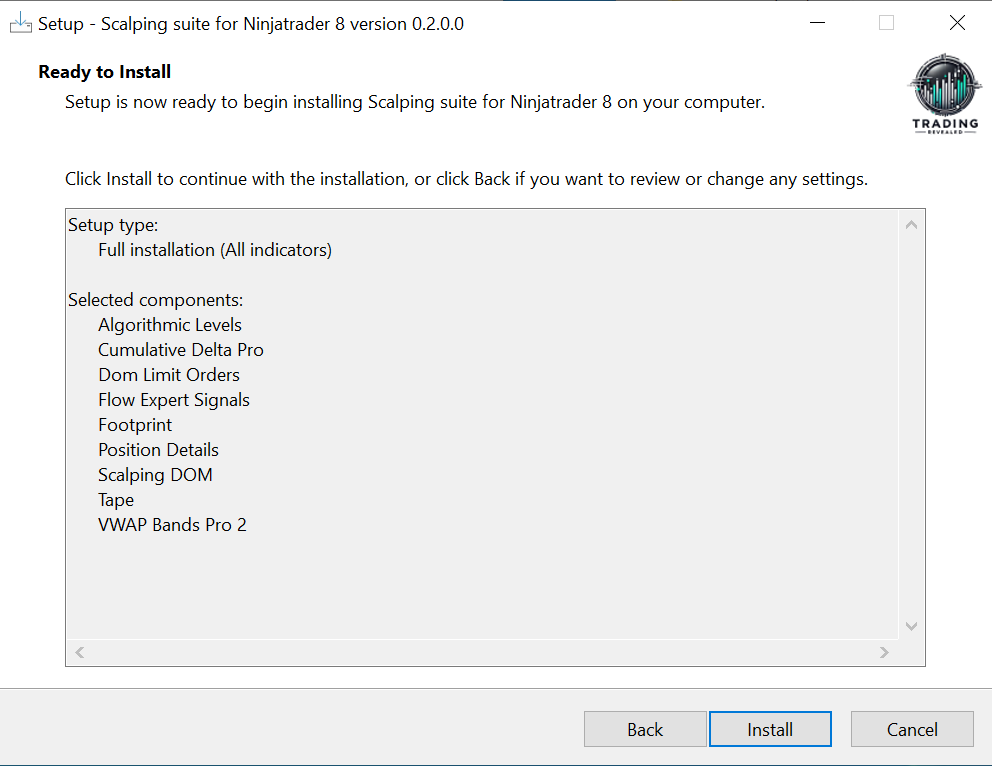
And then click on the “Install” button to start the installation:
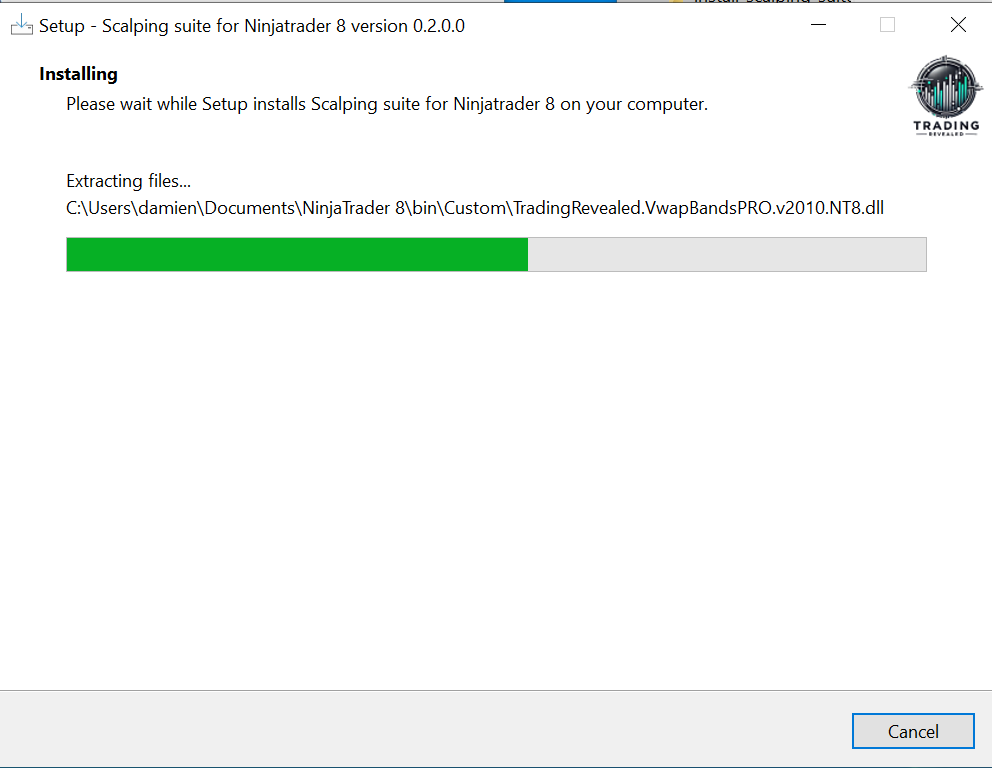
The installation should complete in less than a minute:
Done! Click on the “Finish” button to close the installer:
Step 6: Finalize License Activation
Even though you have purchased a lifetime license, you must submit your NinjaTrader Machine ID via our activation form to permanently authorize your software.
- How to Activate: Please refer to the email titled “Purchase Receipt + license activation required” for step-by-step instructions on how to find and send us your Machine ID.
- Important Deadline: Without this activation, the indicator will display expiration warnings and will stop functioning after 7 days.
Step 7: Using the indicator in NinjaTrader 8
Launch NinjaTrader 8.
You may see a NinjaTrader security warning advising you to only install add-ons from trusted developers. You can safely click “Accept” to proceed.
To ensure the indicators are correctly installed:
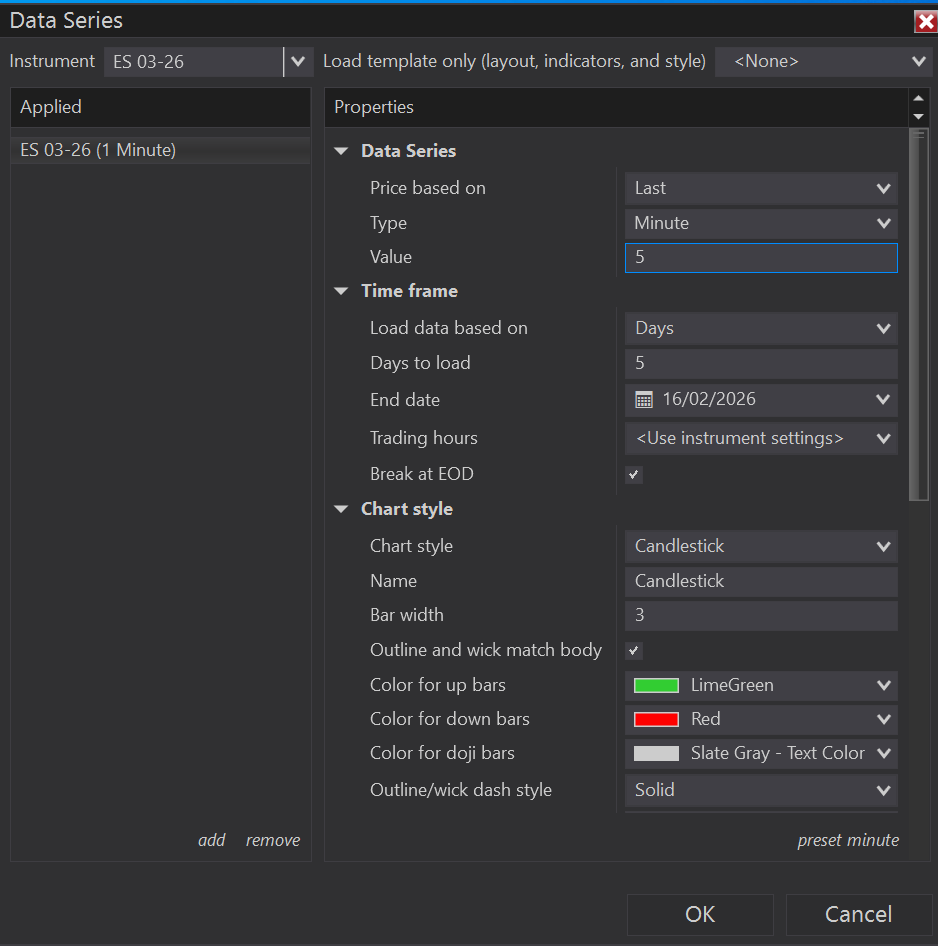
- Open a new chart: (here I picked “ES 03-26” instrument and set the chart to 5 Minutes for the example)
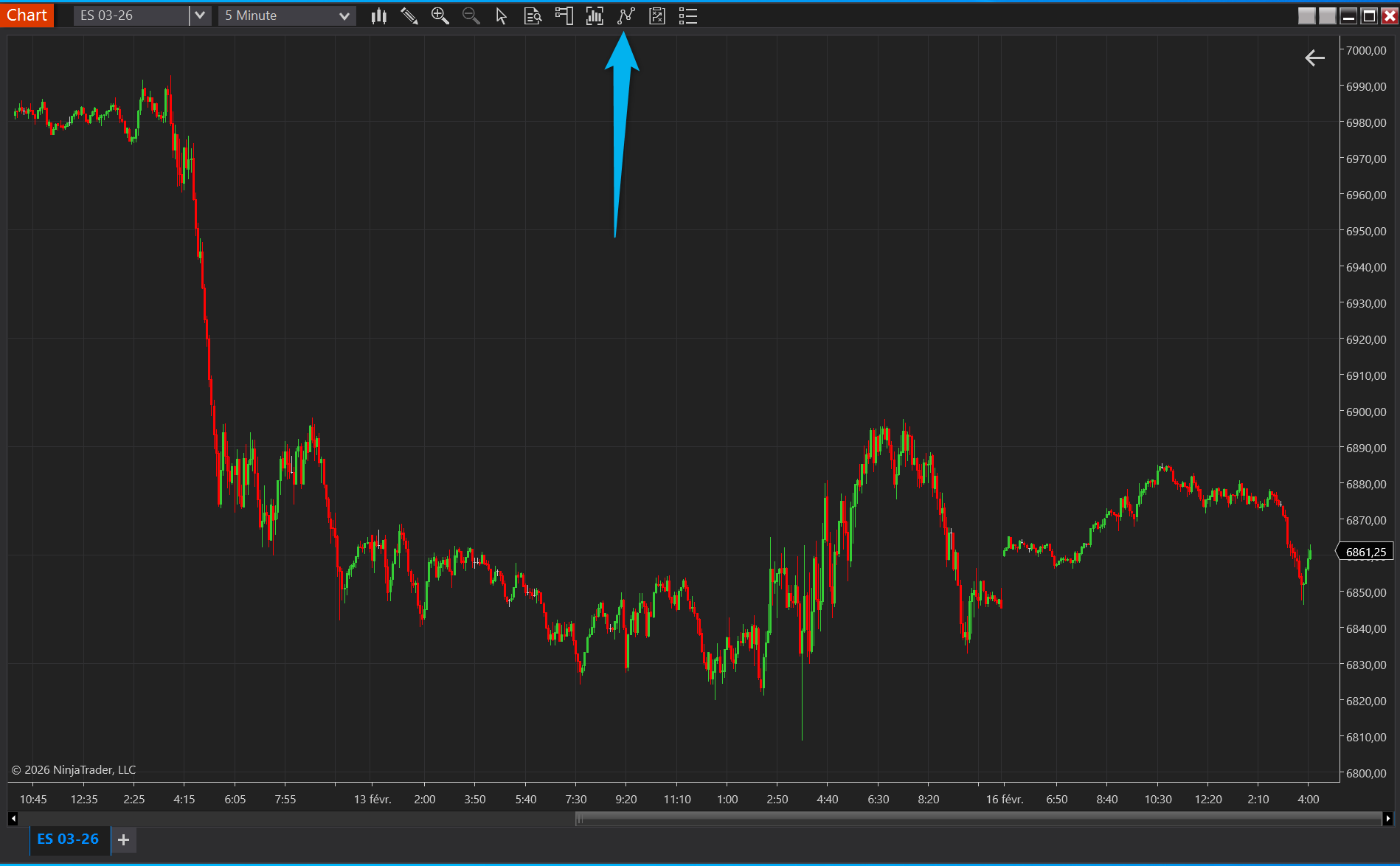
When you have the chart, click on the “Indicators” button at the top (or right click on the Chart to get the Indicators menu):
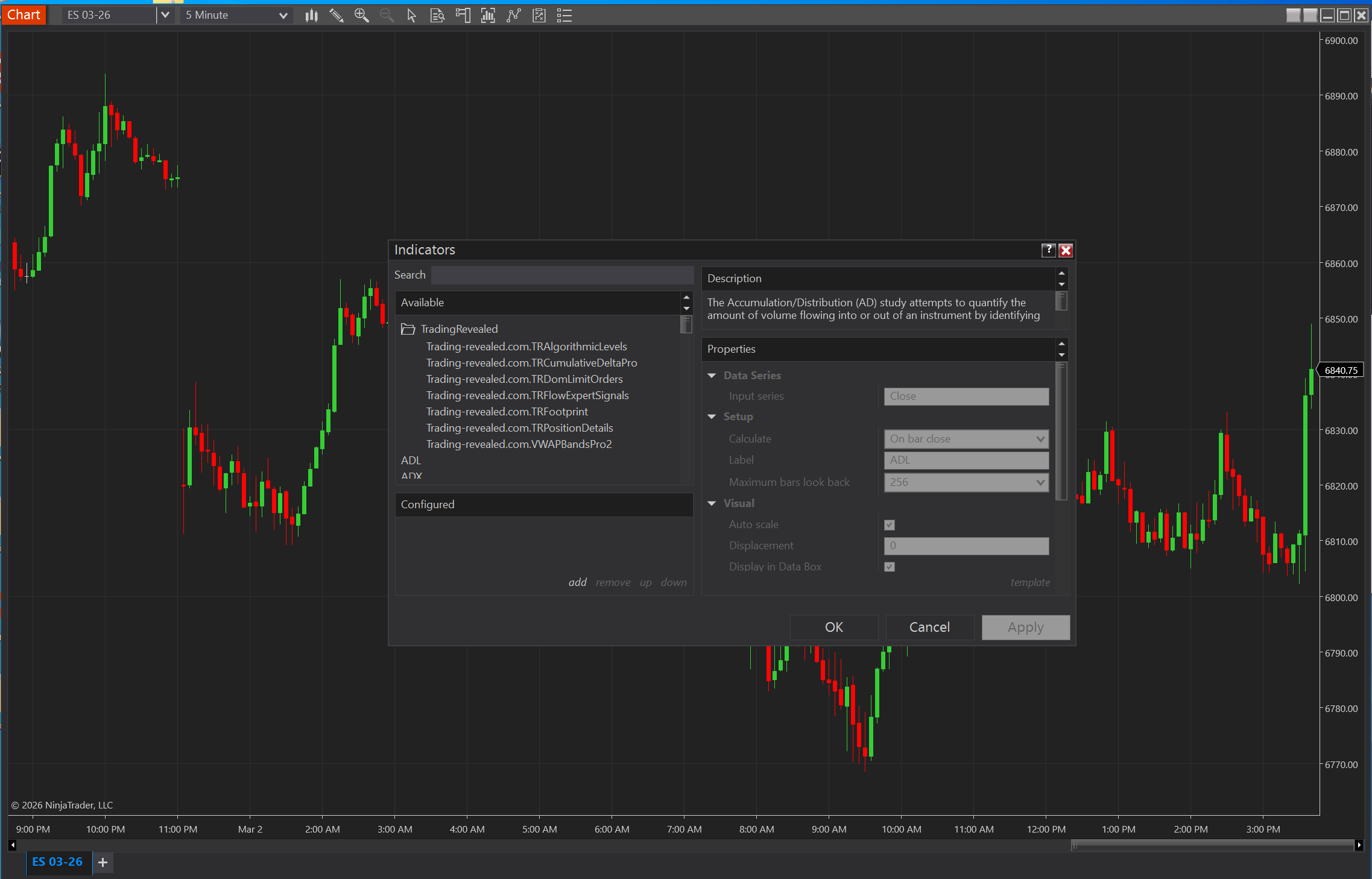
Then you should see all the indicators in the left list under “TradingRevealed” directory.
Double click on it to add it to your chart, and then click “OK” to apply:
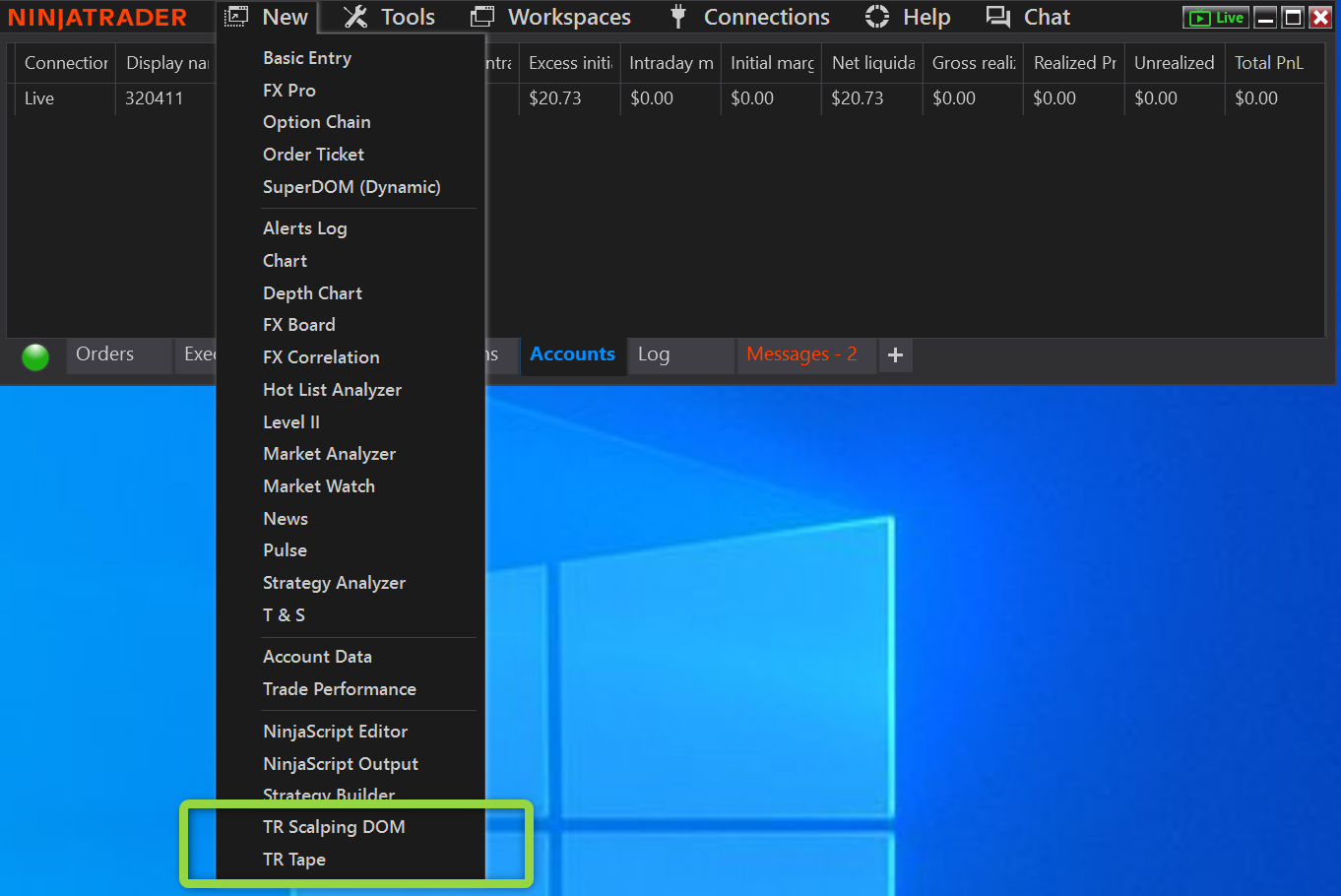
The TR Scalping DOM and TR Tape are not chart indicators, so they won’t appear in the standard indicators list. Since they are custom add-ons, you can find them at the bottom of the “New” menu in the NinjaTrader Control Center:
If you need any further information or assistance, please feel free to contact us by email or via our Discord community (in the “support” section).
Uninstall notes
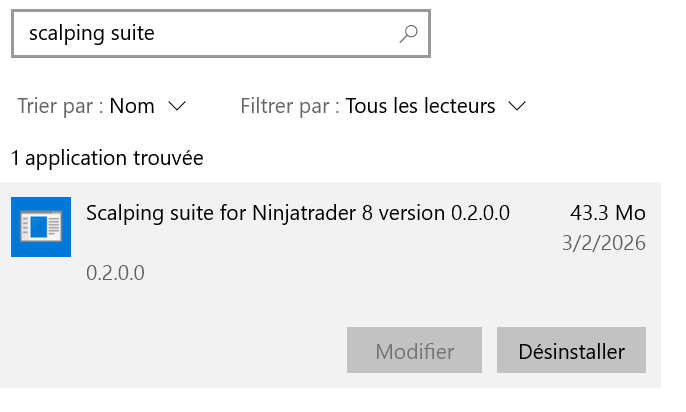
If you ever need to uninstall the Scalping Suite, you can easily do so through the standard “Add or Remove Programs” menu in Windows. Simply search for “Scalping Suite”, select it, and click uninstall:
Now you are ready to tweak the settings to your need and use the indicators and add-ons to improve your Ninjatrader trading experience with our order flow tools. Enjoy!

Leave a Reply