
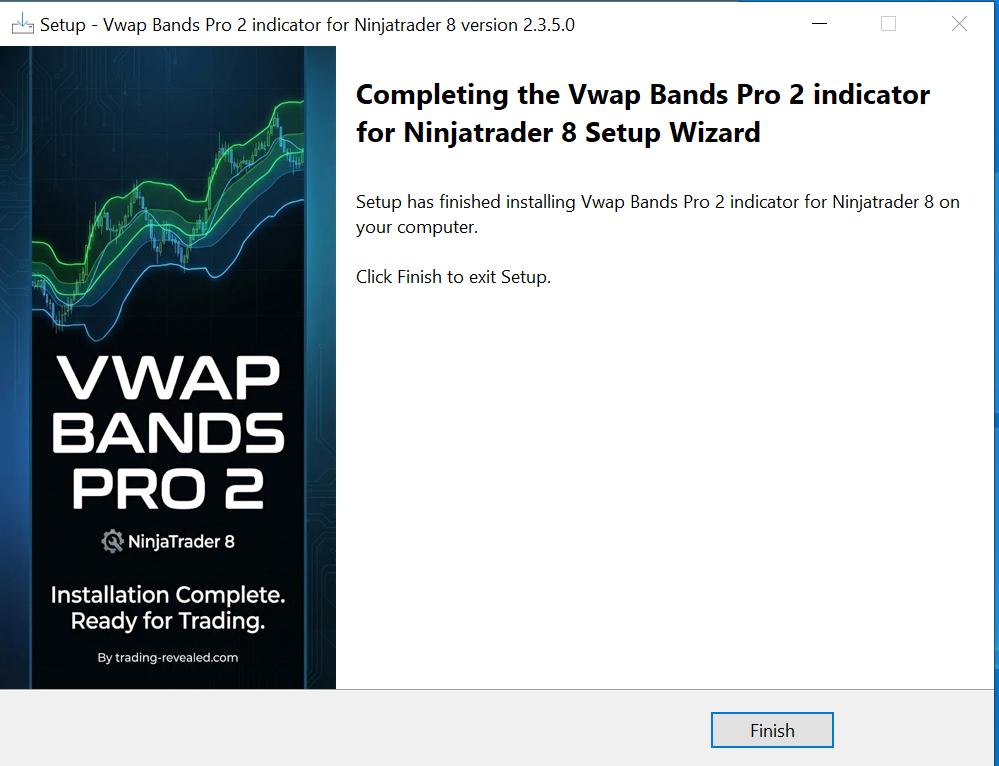
Starting from the version 2.3.5, the VWAP Bands Pro indicator for Ninjatrader 8 will be installed using an easy setup wizard. Follow these simple steps to install it.
Note on Indicator Updates : To update your indicator to a newer version, simply follow the same steps as the initial installation. The installer will automatically detect and uninstall your previous version before replacing it with the latest update.
Step 1: Close NinjaTrader 8
Important: The installer needs to update Ninjatrader core system files (DLLs).
- Make sure NinjaTrader 8 is completely closed before starting the installation.
- If the app is still running, the installer will pause and ask you to close it.
Step 2: Download and Extract
Because web browsers often flag .exe files, we have provided the installer inside a .zip archive.
Download the file from your confirmation email.
Right-click the ZIP file and select Extract All.
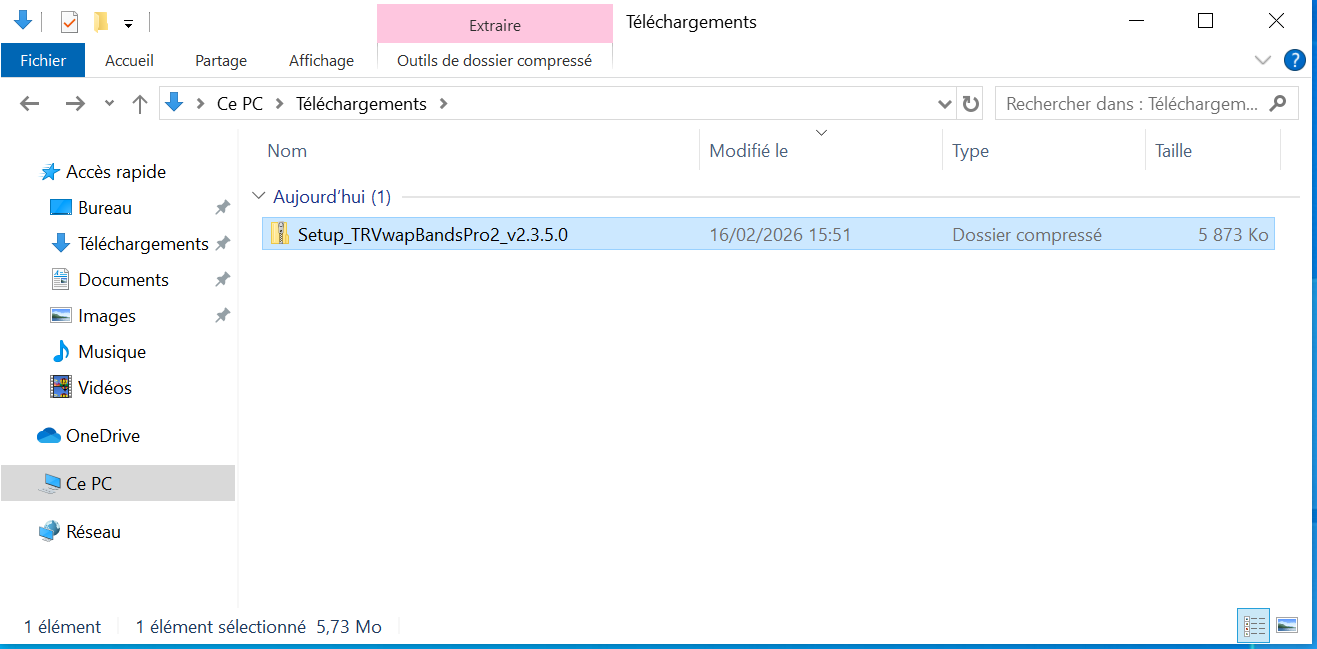
Step 3: Run the Installer
Double click on the extracted Setup_TRVwapBandsPro2_v2.3.5.exe executable file
Or Double click on the downloaded ZIP file to open it and then double click on the executable file to launch the installation program directly:
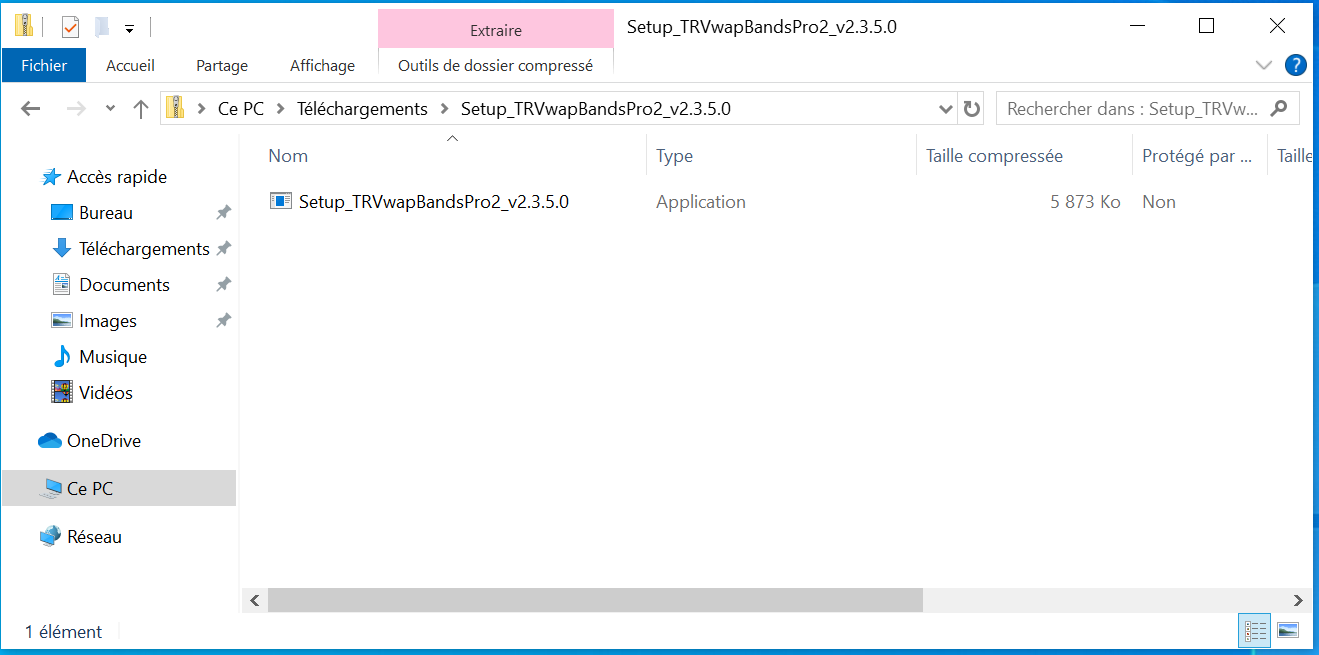
- Note on Windows SmartScreen: Since this is a specialized trading tool, Windows may display a blue “Windows protected your PC” alert.
- Click on “More info” and then select “Run anyway”.
Step 4: Accept the License Agreement
Read through our End-User License Agreement.
Single Machine Policy: Please remember that each license is valid for one (1) machine only.
Check “I accept the agreement” and click Next.
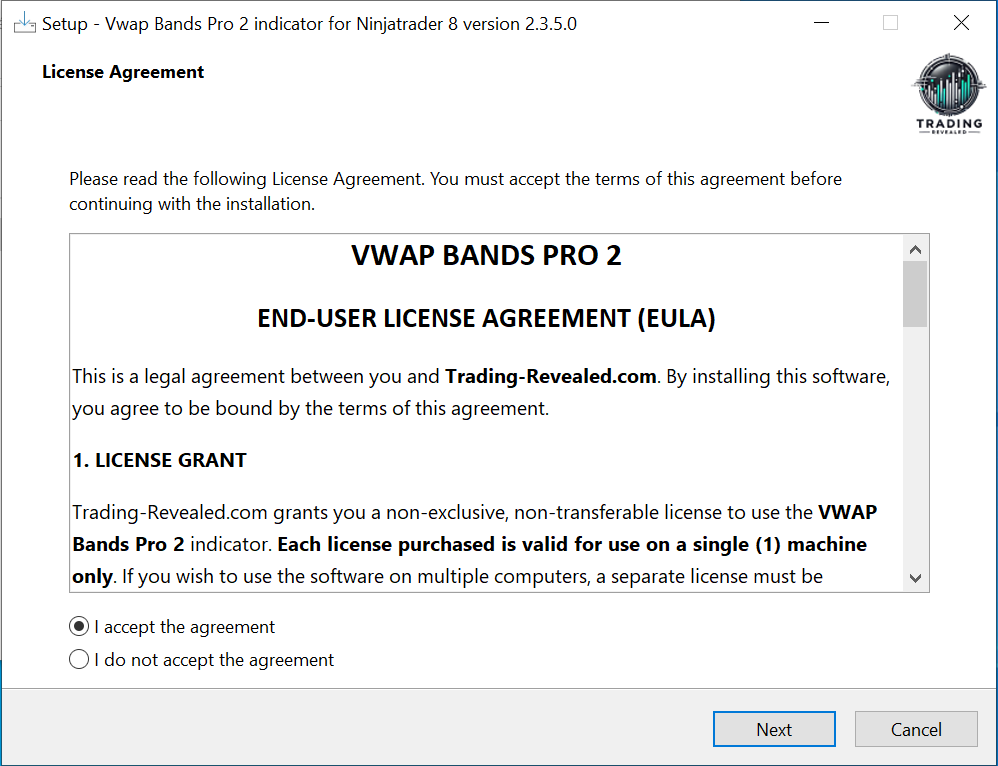
Step 5: Automated Installation
Click on the “Next” button:
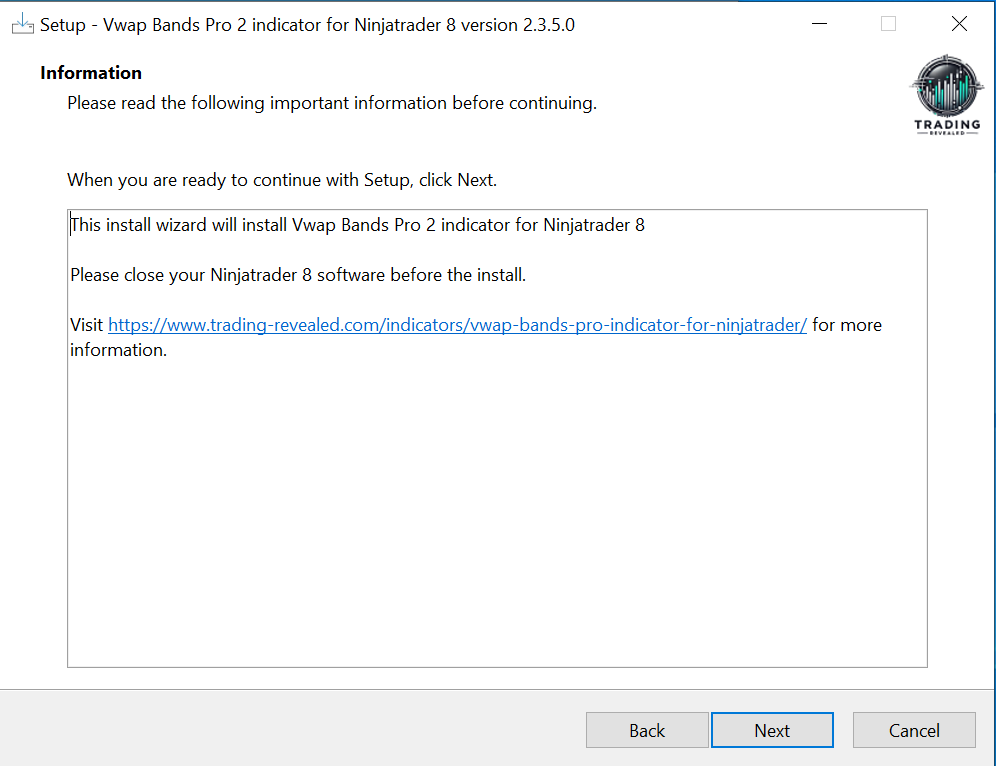
And then click on the “Install” button to start the installation:
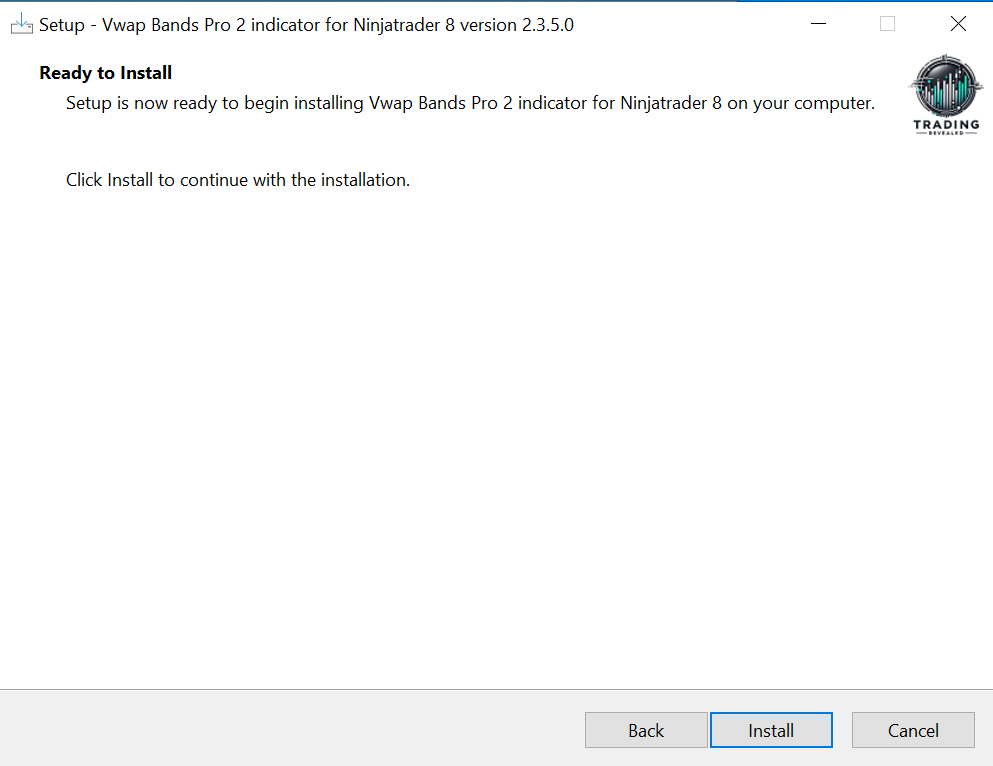
The installation should complete in less than a minute:
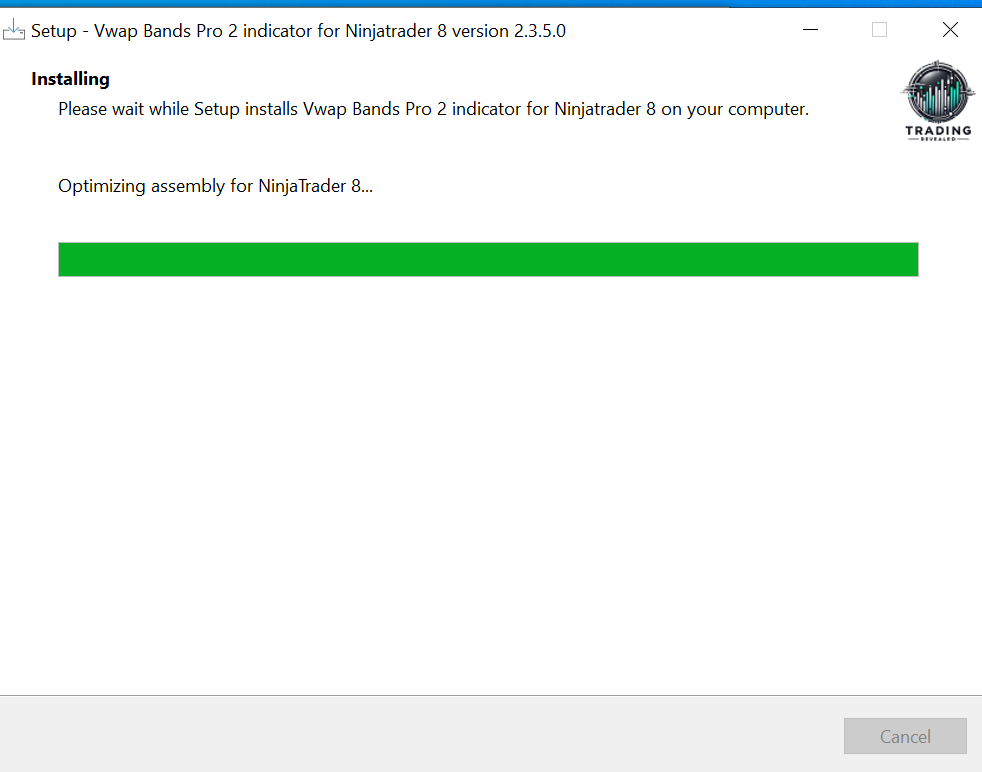
Done! Click on the “Finish” button to close the installer:
Step 6: Finalize License Activation
Even though you have purchased a lifetime license, you must submit your NinjaTrader Machine ID via our activation form to permanently authorize your software.
- How to Activate: Please refer to the email titled “Purchase Receipt + license activation required” for step-by-step instructions on how to find and send us your Machine ID.
- Important Deadline: Without this activation, the indicator will display expiration warnings and will stop functioning after 3 days.
Step 7: Using the indicator in NinjaTrader 8
Launch NinjaTrader 8. To ensure the new indicator is correctly installed:
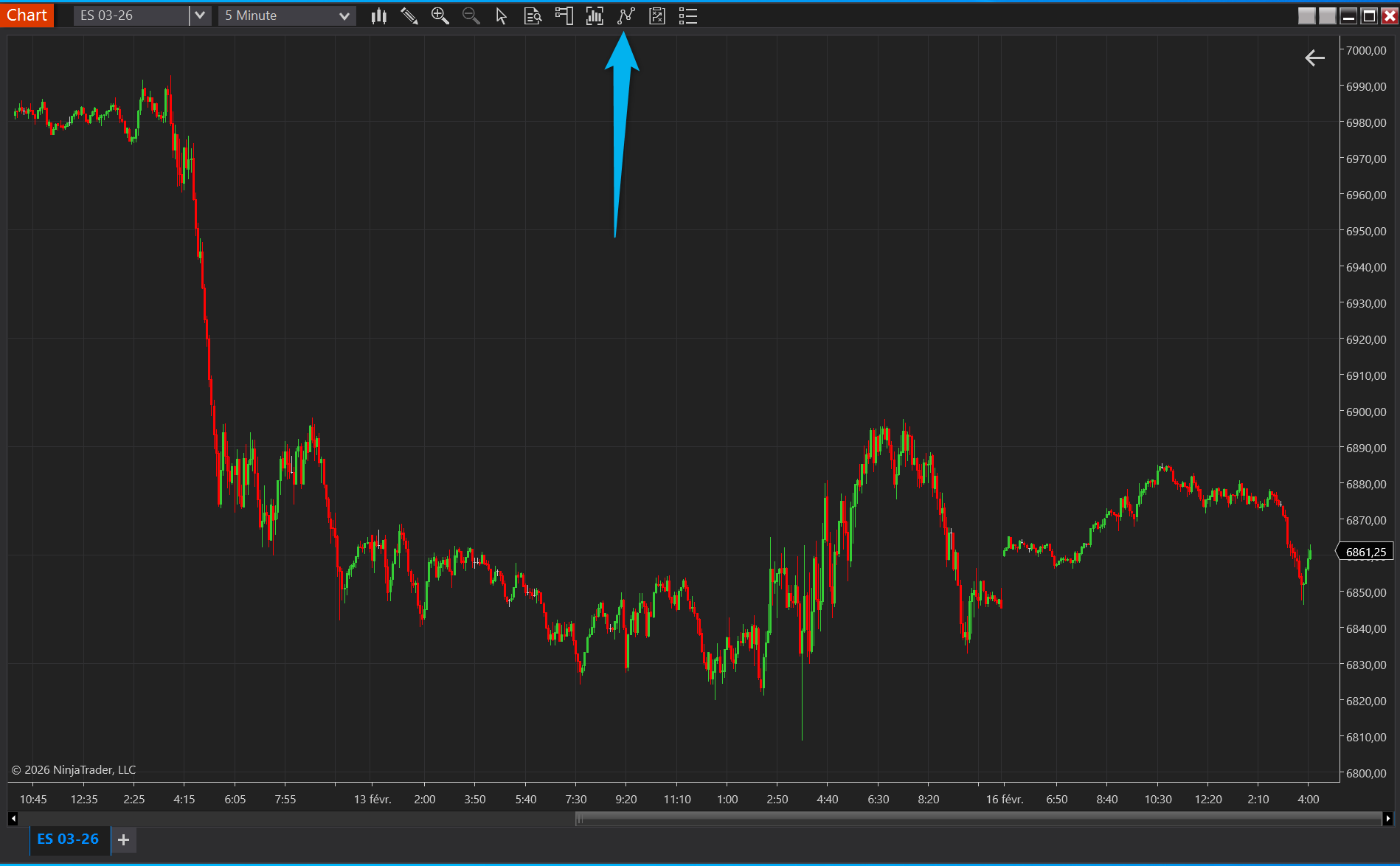
- Open a new chart: (here I picked “ES 03-26” instrument and set the chart to 5 Minutes for the example)
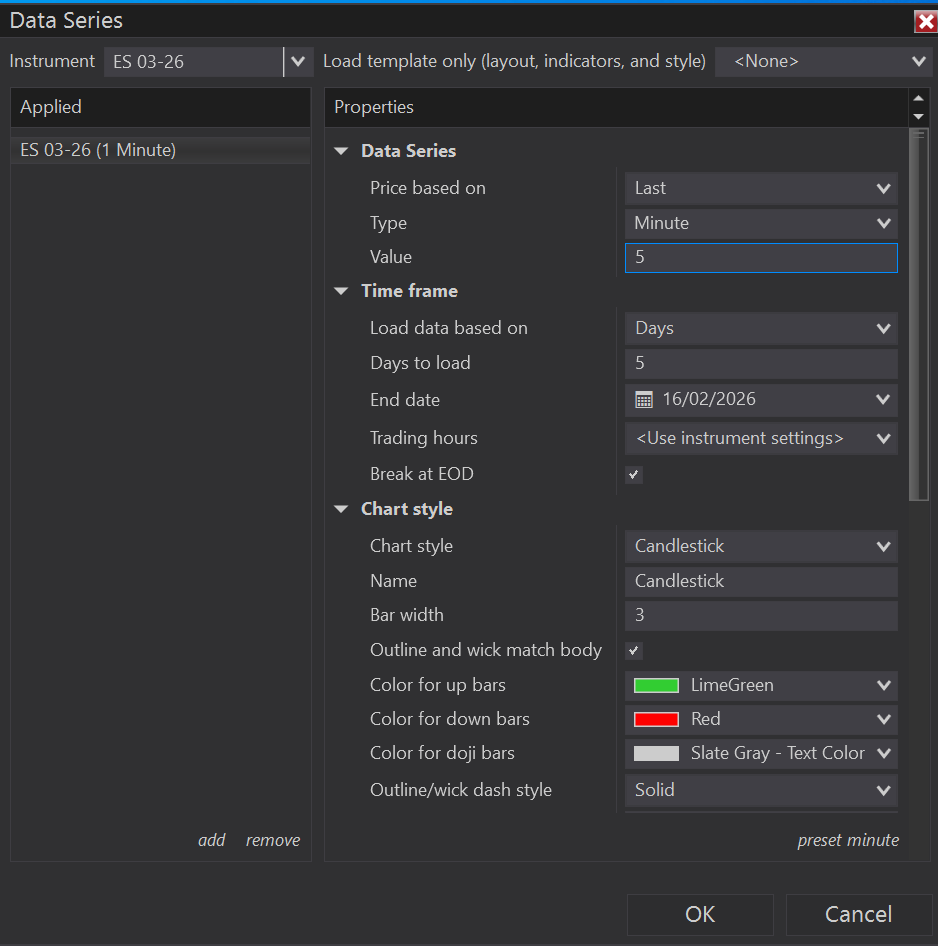
When you have the chart, click on the “Indicators” button at the top (or right click on the Chart to get the Indicators menu):
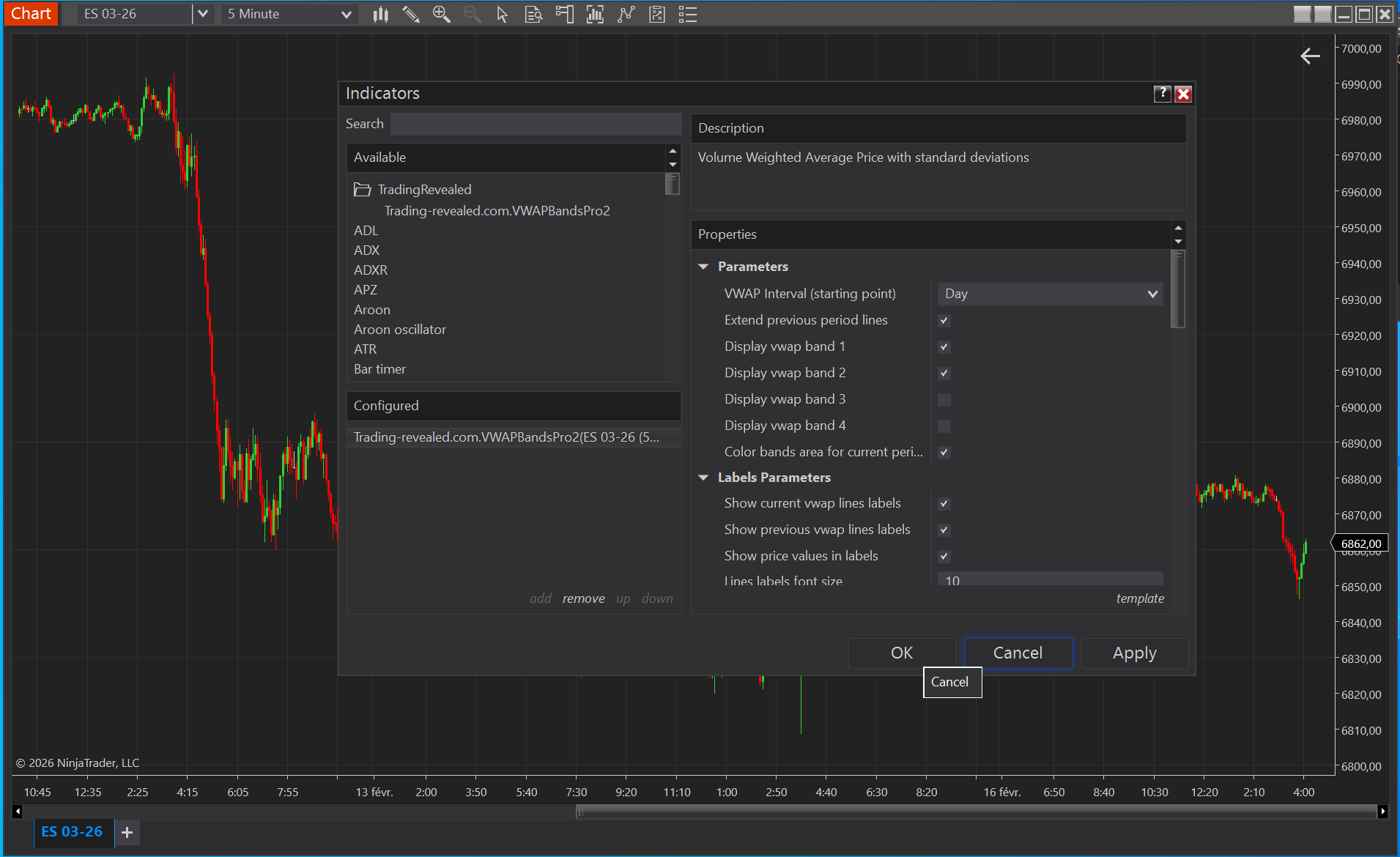
Then you should see the VWAPBandsPro2 indicator in the left list under “TradingRevealed” directory.
Double click on it to add it to your chart, and then click “OK” to apply:
You should get something like this using the default settings:
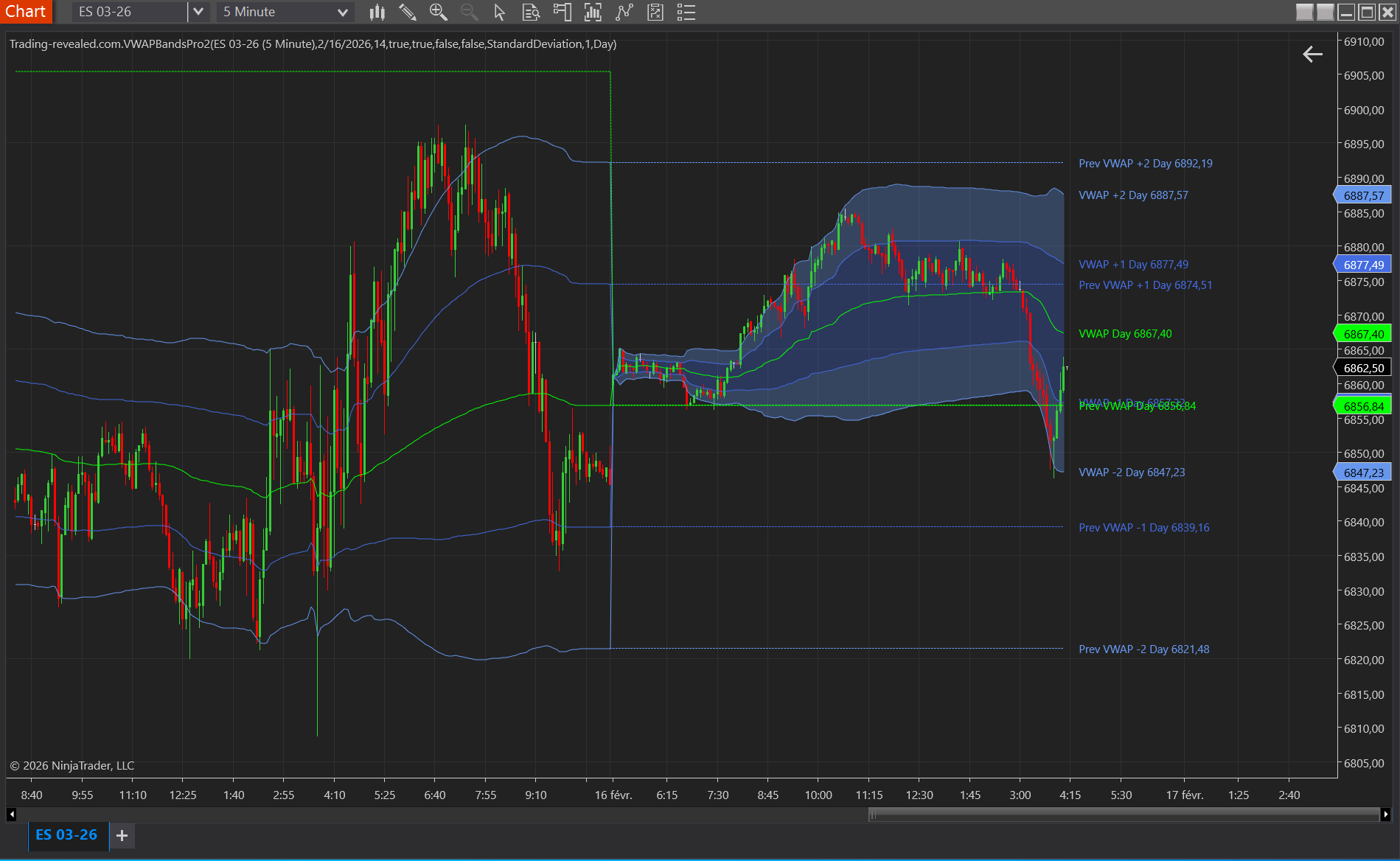
Now you are ready to tweak the settings to your need and use the VWAP bands Pro indicator to improve your trading. Enjoy!
Leave a Reply